 AvatarVideoGen
Turn any photo into a talking AI video — without leaving Canva
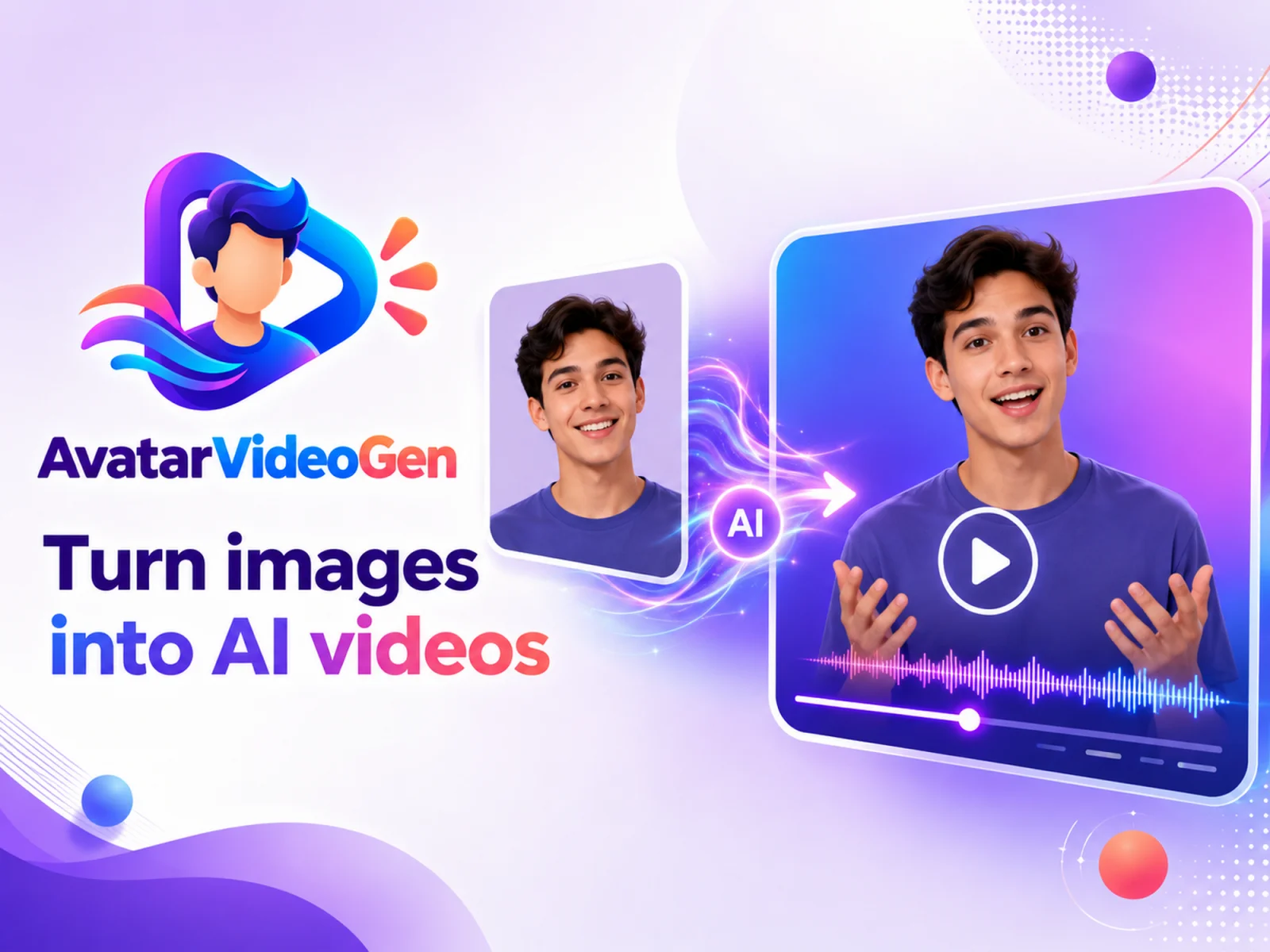
Upload a photo, add a script or animation prompt, and AvatarVideoGen renders a lip-synced talking avatar or an animated video clip you can drop straight into your Canva design.
A Canva app — install it from the Canva Apps directory.
How it works
Three steps, entirely inside the Canva editor.
Upload a photo
Any portrait works. Pick a background, or keep the original one.
Add a script or prompt
Write what the avatar should say and pick a voice, or describe how the photo should move.
Generate and drop it in
Your video renders in the app and adds straight into your Canva design.
Two ways to generate
Pick the mode that fits what you're making.
Talking avatar
Write a script, choose a voice, and get a lip-synced talking video generated from your photo — great for intros, explainers, and social clips.
Animated photo
Describe how the scene should move — camera pans, gestures, environment changes — and get a short animated video from a single still photo.
Pricing
Start free. Upgrade when you need more videos or full 1080p.
- A short avatar or animated clip
- 720p rendering
- Refreshes monthly
- Full 1080p rendering
- Dozens of videos per month
- Both avatar and animate modes
- Full 1080p rendering
- The largest monthly video allowance
- Priority support